
Workspace overview
PatrolSafe separates the account connection from evidence monitoring. Read both states before changing configuration: Connected and paused is a valid state and does not mean that evidence is being collected.
Core areas
Dashboard
Review workspace readiness, connection and monitoring state, configured sites, and evidence activity.
Sites
Create and maintain the site records used to organise evidence. Check site details before assigning a group.
Group mappings
Select an approved WhatsApp group by display name and map it to the correct site. New supported images follow the current mapping; changing a mapping does not move historical evidence.
Monitoring
Review WhatsApp connection and monitoring separately. A workspace can be connected while monitoring is paused.
Evidence
Review captured images using site, date, time, source, and integrity context in the available evidence views.
Backup and restore
Create verified workspace backups and restore them through Settings after reading the replacement warning.
Licence
Review the licence state shown in the application. Contact support before moving an installation to another workstation.
Support
Start with the customer-safe health summary. Share advanced diagnostics only when support asks for them through an approved route.
Reviewing evidence
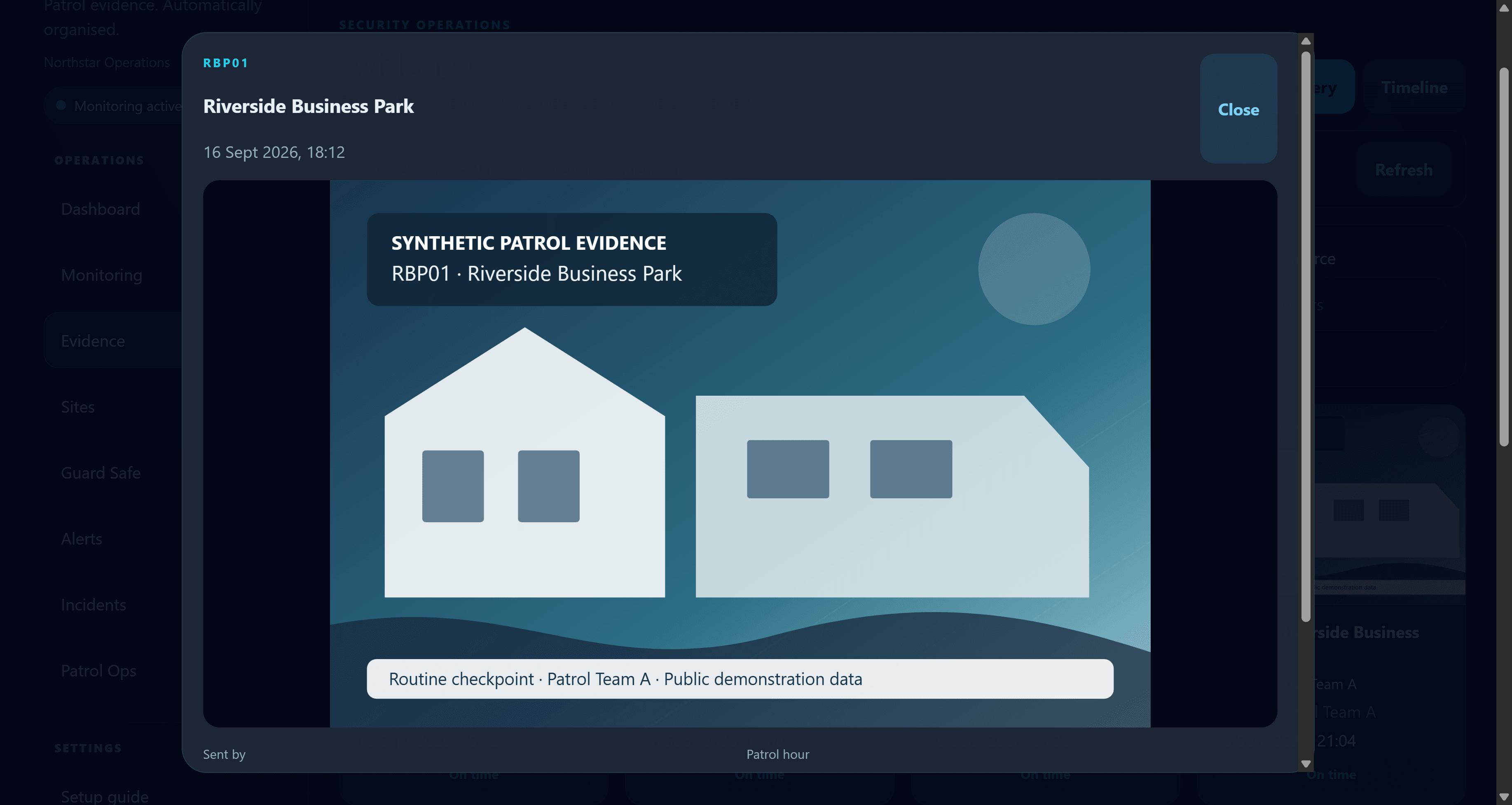
Open an evidence record to review its image and associated site, time, source, and integrity context. The example below uses synthetic demonstration evidence rather than a live security site.
Recommended operating order
- Confirm the workspace time zone and protected evidence location.
- Check that each site record is accurate.
- Review every approved group-to-site mapping.
- Confirm the account connection state.
- Start monitoring and confirm that it reports active.
- Review new evidence in the intended site record.
- Create and protect a current workspace backup.
Need more detail?
See WhatsApp connection troubleshooting for connection and monitoring states, or backup and restore for recovery guidance.